How can I share a site ID with other users?
Introduction
QCS is an application that was designed to manage thousands of pieces of information such as activities, dates, reports, submittals/transmittals, and much more. As such QCS needed to be integrated with a database engine that would be powerful enough to manage all of this information yet simple enough so that it would not present configuration and installation problems to typical QCS users whose priority is to manage construction projects not computers and networks. To satisfy that need the Firebird ® database engine was selected. This engine provides many of the features found on high end database engines such as client/server configurations, SQL programming support, and much more yet its operation is largely unnoticed by the typical QCS user. You can visit the Firebird ® website at www.firebirdsql.org. Since the Firebird ® database engine is so tightly integrated with QCS this article will only make reference to QCS even though it is the Firebird ® database engine that is providing the abilities discussed here.
QCS allows a site ID, the QCS "database", to be shared with multiple users on a common network. Using computing terminology QCS is "multi-user". That is one computer holds the database and shares it with other computers that are on the same network. So if your office has multiple computers that are all connected together on the same network you can setup QCS so one computer holds the QCS database, the "server", while the other QCS computers, the "clients", access the QCS database across the network. In this article we will first discuss how to setup the "server" QCS and then finish with a discussion on setting up the "client" QCS(s).
QCS may be installed in any one of three ways - Server, Client, or Stand Alone. The Server installation will only install the Firebird ® database server and a blank QCS database. The QCS application itself will not be installed. Unless hard disk space is very limited, rarely so in today's world of Gigabyte or even Terabyte size hard drives, we do not recommend a Server only install as there are many advantages of installing the QCS application on the server. The second type of QCS install, Client, will only install the QCS application and the Firebird ® client software. No QCS database will be installed and the Firebird ® database server will not be installed. You will pick this QCS installation for computers that are to connect to another computer that has the QCS database stored on it. The final QCS install type is Stand Alone. The name is rather misleading as the installation will actually install all of the software components of the Server and Client installs. That is the Firebird ® server and client software are installed as well as the QCS application and database. We recommend this install type for computers that will operate as a server or may in the future run as a server as well as those installs where the computer is to be the only computer in the office running QCS. So both of the following two sections, Server Configuration and Client Configuration, apply to Stand Alone installations.
Server Configuration
The Firebird ® database engine is "lightweight" enough that it can run not only on a dedicated server but also on a computer that will double as a user's workstation and as the QCS server for others in the office. The QCS setup program will install the Firebird ® server onto the computer and from then on the Firebird ® server will manage itself without any intervention. You can "see" the Firebird ® server if you open your Control Panel and then select "Administrative Tools | Services". The Firebird ® server will show in the list as Firebird Server - USACE. Since the Firebird ® server is installed as a service it will be running even if no one is logged into the computer it is installed on. That is all you need to know about the Firebird ® database server. It is that simple.
Once you have installed the Stand Alone version of QCS on your server you will need to get the settings Firebird ® needs on the client computers. To get the Firebird ® settings you will start QCS and when you get to the login window you will see the [Database] button to the right as shown in the screen shot below:
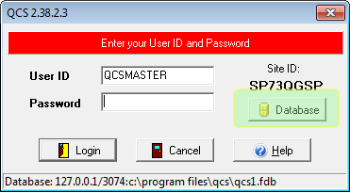
Once you have clicked on the [Database] button the QCS "Database Location" window will appear as shown below:

Here we see the three settings required by the Firebird ® database engine. First is the Server Name. The Server Name is the name of the computer where the QCS database is situated. Here the name of the QCS server is QCS_WEST. We can tell that QCS_WEST is the name of another computer on the network because in the text box above we see that the name of the computer that is running the QCS application is KEN7-DEV. Sometimes you will see an IP address in this field and in fact you can enter either the name of the computer that contains the QCS database or its IP address. Most users simply use the name of the server rather than the more confusing IP address. Note that there is one exception. Sometimes QCS will enter the IP address of "127.0.0.1". This is a special address that always represents the IP address of the computer that is running QCS. In Server Name make sure you will need to enter the name of the computer that contains the QCS database here.
The second Firebird ® setting is Server Port. The Server Port is the number of the port that the Firebird ® database engine will use to communicate with the clients. You can think of port numbers as channels on a TV or the frequency of a radio station. Sometimes multiple applications will use the same port number and that could lead to communication problems. However there are thousands of ports so this is an unlikely situation. We suggest that you do not alter the port number away from 3074 unless you have a specific need to change it.
The final Firebird ® setting is Database Path. The Database Path is the path to the QCS database file QCS.FDB. The path you need to enter here is the path relative to the server itself. In a server client configuration do not use a path that includes a mapped drive or use any UNC naming convention. Just simply use the physical path as if you were setting at the server. Typically you do not need to be concerned with this setting as it is automatically entered by the QCS Setup application when QCS is installed.
So here in the "Database Location" window you can see the three settings required for Firebird ®. You will need to write down these three settings as they will need to be copied on each of the clients.
Client Configuration
Once you have QCS running on the server, setting up QCS on the client computers is easy as long as there is a network connection between the client and the server computers. When starting QCS on the client computer you will open the Database Location window by clicking on the [Database] button just as you did on the server computer earlier. In the Database Location window you will enter the server's Server Name, Server Port, and Database Path. It is important that you enter the Database Path exactly as it is shown on the server. There is no need to take into account any mapped drives.
After you have enter the Firebird ® settings you can click on the [Test Server Connections] button to verify that not only can the client communicate with the server but that the client can also communicate with the SFTP Repository on the internet. For help in dealing with networking issues you will want to look at the FAQ titled "How can I debug QCS networking problems?".